
You can record browser tabs directly in the web version of Caption.Ed, perfect for transcribing YouTube videos, training content, or old meeting recordings. If it plays in a browser tab, Caption.Ed can transcribe it!
This quick guide will walk you through how to set up these recording sessions.
Please Note: Tab recording is only compatible with Google Chrome and Microsoft Edge.
First, log into Caption.Ed in the browser. Once logged in, click the "Record" button.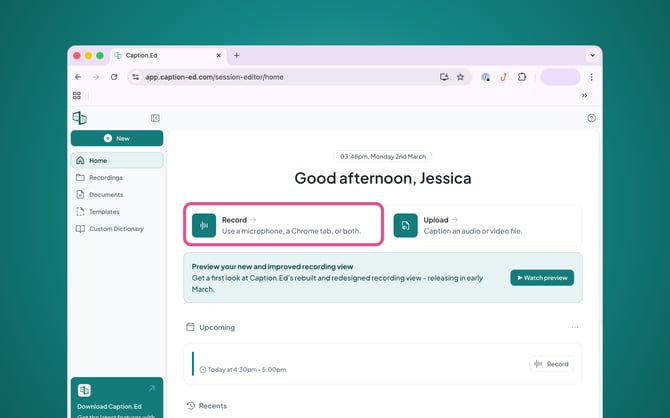
The first time you record within your browser you will be asked to grant permissions for Caption.Ed to use your Microphone, you will need to click Allow.
If you want to record your voice, then just click on the "Microphone" Button and then a drop-down menu should appear where you can select your microphone of choice.
Alternatively, if you do not want your voice recorded, then you can turn the microphone off.
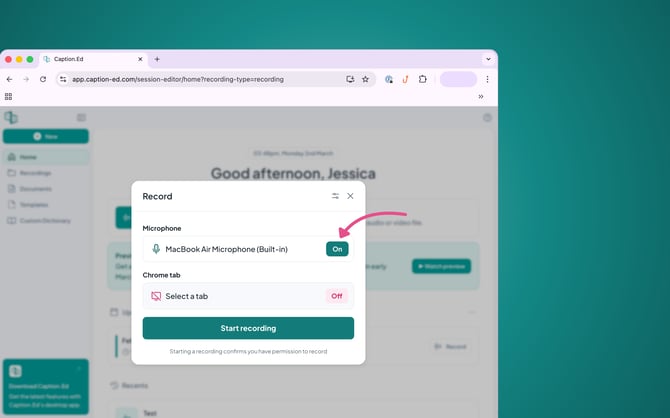
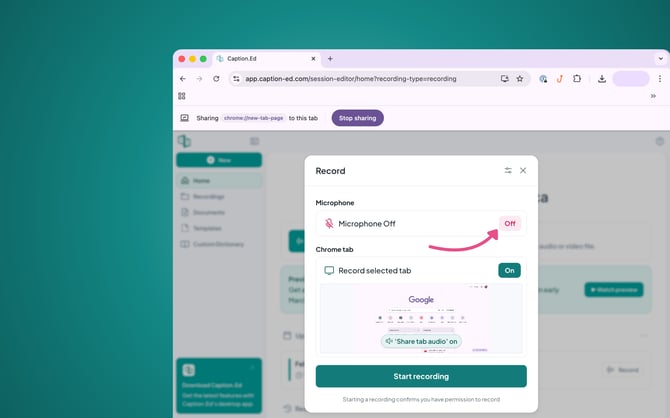
Then you need to click on the "Select a Tab" button, where you can choose which tab you would like to record the video and audio for.
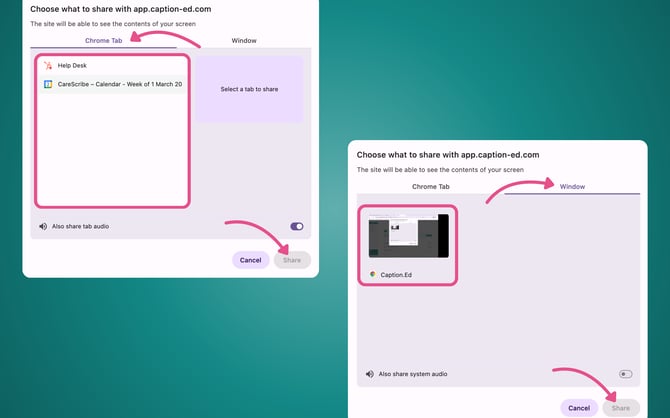
You need to select your tab of choice, turn the share audio toggle on, and click on the share button in the bottom left-hand corner.
Once you have your microphone and tab settings set, go ahead and click the green “Start recording” button to start your browser session!
Tip: For the most accurate captions, we recommend you use headphones. This will help prevent any audio feedback.