
When starting your first session in the browser version of Caption.Ed, you should receive a pop-up to enable permissions for your browser to access your microphone and tab recording if enabled for your session. You can click “Allow” to enable these.
If this pop-up doesn’t appear for you, follow the appropriate steps below for your browser:
Google Chrome (Recommended Browser)
Try simply refreshing the page first and see if the pop-up then appears.
Otherwise, click on the three-dot icon in the top right-hand corner of the screen and choose "Settings".
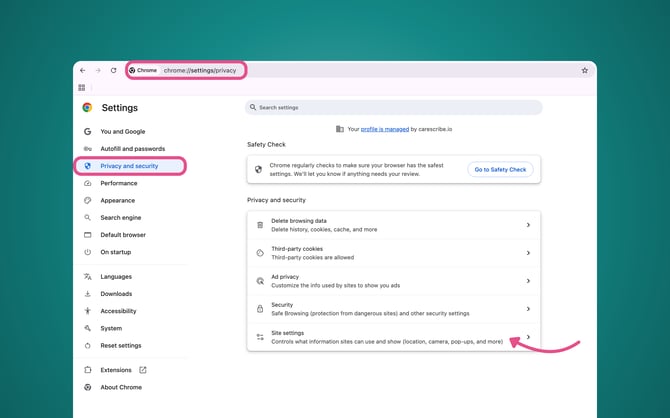
The Settings screen will then appear, and from here, click "Privacy & Security" on the left-hand side, then "Site Settings".
Scroll down until you see the section for "Permissions" and choose the "Microphone" option.
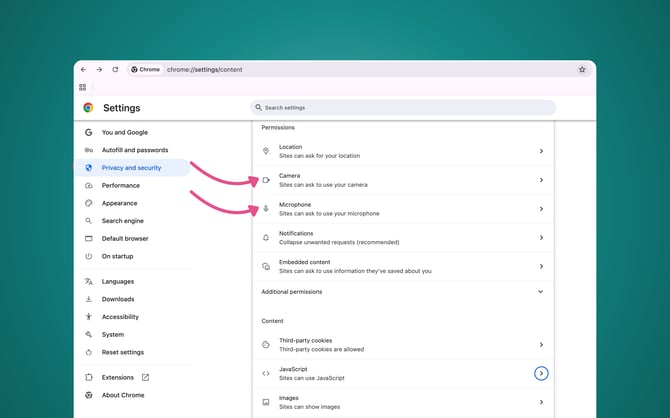
First, check and ensure the option for "Sites can ask to use your microphone" is enabled.
Next, if the microphone permissions were blocked, you will see under "Not allowed to use your microphone" the Caption.Ed website. Click on the play icon, find the Microphone option, and change this from "Block" to "Allow".
Once you have reset the permissions, go back to Caption.Ed and refresh the page. You can then select the microphone you wish to caption from.
Tip: Alternatively, you can click on Reset Permissions, and then you refresh the browser. It will provide you with the pop-up to allow permissions.
Microsoft Edge
If you didn't receive a pop-up, then you might see a microphone icon in the URL address bar. Click on the Microphone, and then change the option to "Always allow https://app.caption-ed.com to access your microphone", and then press Done.
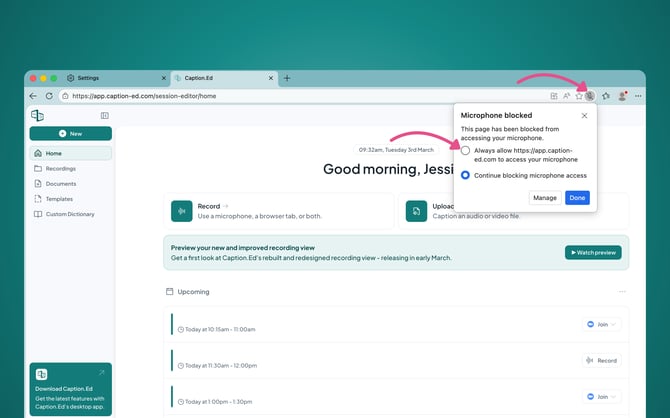
Otherwise, within Microsoft Edge, click on the three-dot icon in the top right-hand corner of the page and choose "Settings".
In the sidebar down the left-hand side, choose "Site permissions" and click on All permissions.
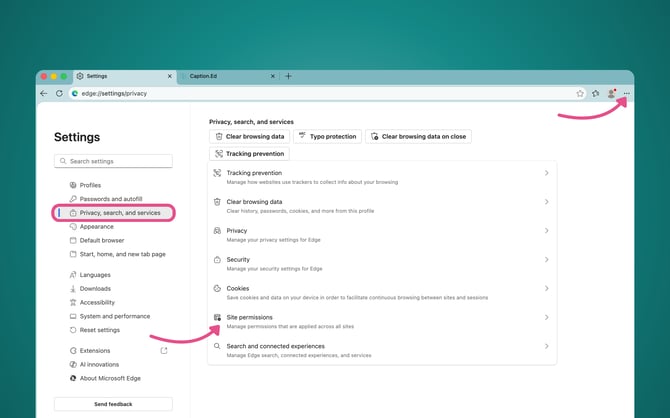
You will then see the website address for Caption.Ed is on the list of blocked access. Simply click on the trash icon to remove this, and then you can close this setting page and refresh the Caption.Ed website, and you'll see the pop-up window appear.
Safari
If you didn't receive a pop-up or see the Microphone permission required message, you will need to reset Safari's permissions for Caption.Ed.
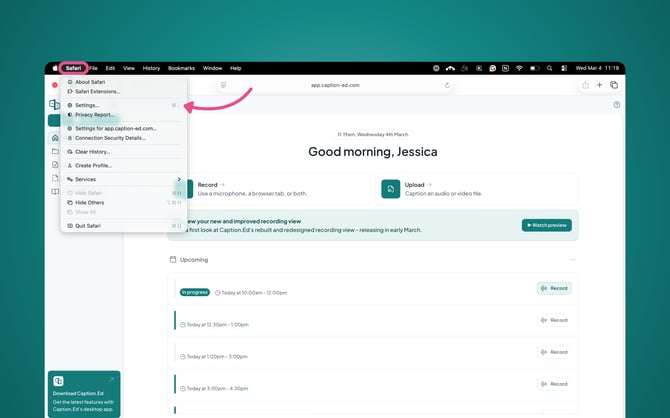
In the top navigation bar, next to the Apple logo, click on Safari and then choose Settings.
Then, choose Websites in the top bar, and then select Microphone. You will then see a list of currently opened websites within Safari and a drop-down menu next to the Caption.Ed URL that says "Deny". Click on this drop-down menu and change this from "Deny" to "Allow".
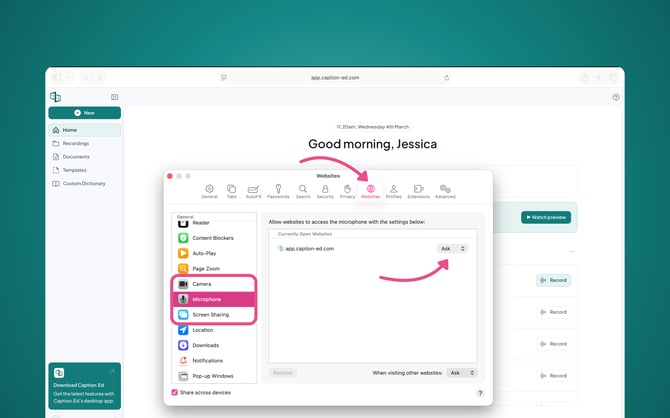
Once you have changed this to Allow, you can close this Settings window, refresh Safari and then you can choose which Microphone you want to capture from.
Please Note: Caption.Ed is compatible with Google Chrome, Microsoft Edge and Safari.