We’ve launched an exciting new layout for Caption.Ed!
This refreshed design makes it easier to see exactly what you need to do while giving you more control to customise the workspace to suit the way you work. These updates will only appear within the recording view, so the rest of your workflow remains unchanged.
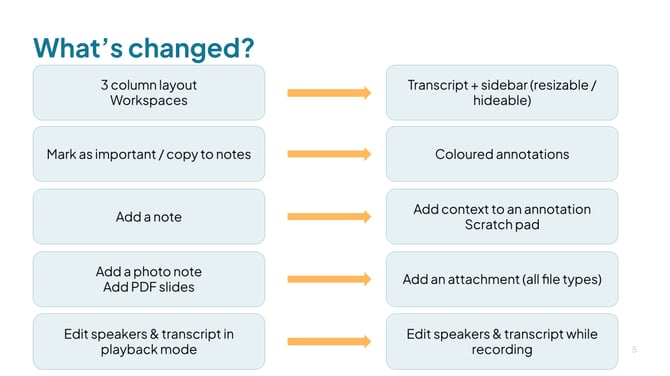
Watch the video below for a quick tour of the new layout. Beneath the video, you’ll also find a chart summarising what has changed in Caption.Ed:
A detailed breakdown below:
3-Column Layout Workspaces = Transcript + Sidebar
Previously, the workspace displayed three columns. Now, you have your transcript alongside a sidebar. If you preferred the old layout, you can keep the sidebar open, but you also have the option to hide it so you can focus solely on the captions. Both panels are resizable, giving you more flexibility to adjust the workspace to suit your needs.
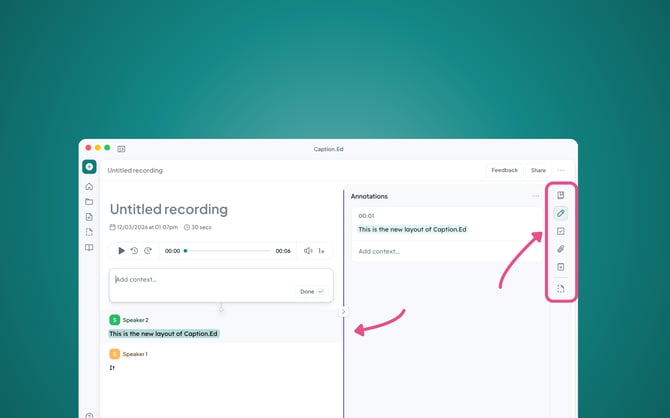
Mark as Important / Copy to Notes= Coloured annotations
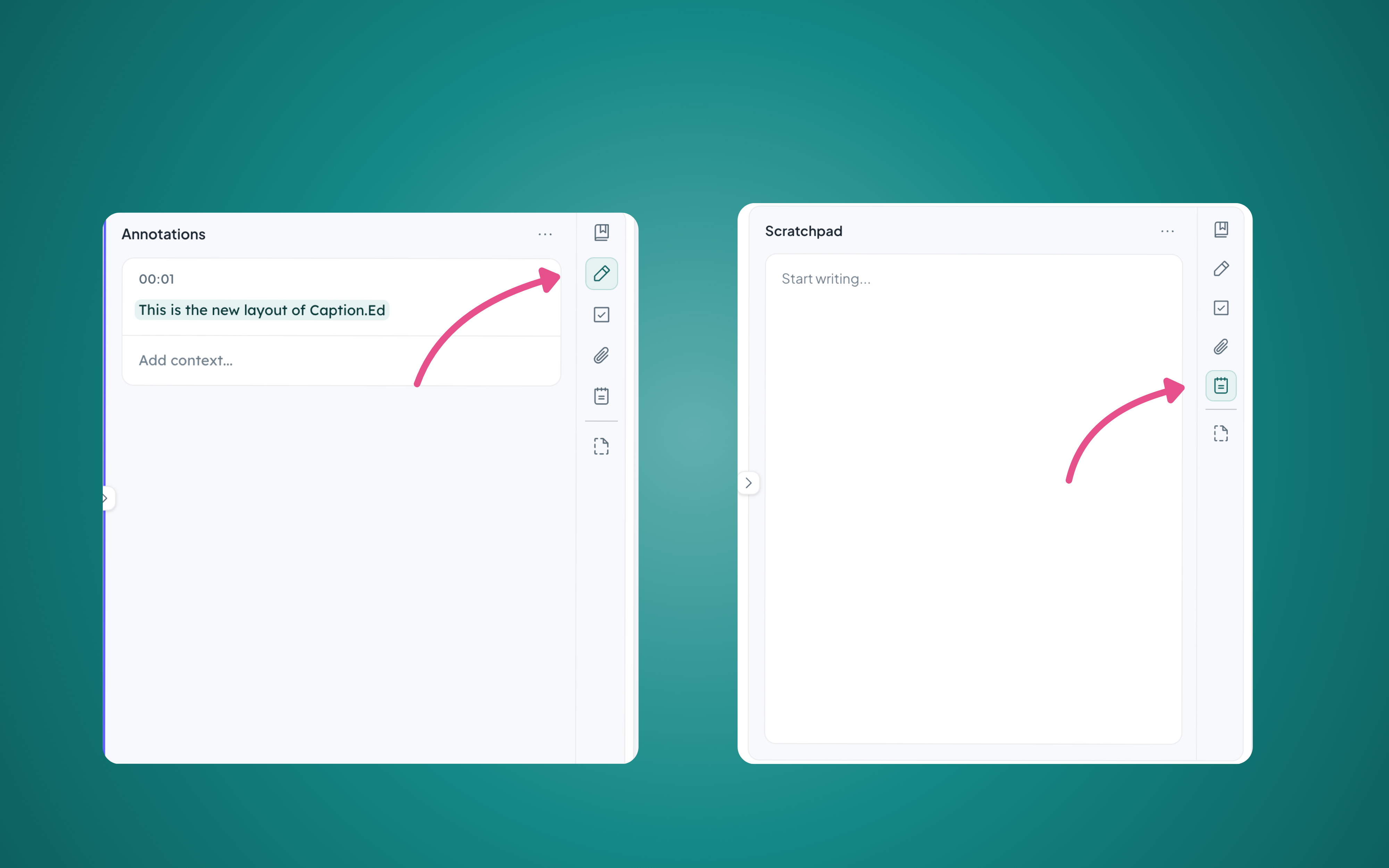
These features are still available but are now located within the annotation section. Simply highlight the word or text and add context. There are multiple highlight colours available, allowing you to organise your notes more effectively. For example, you can assign one colour for Copy to Notes and another for Mark as Important, while still having additional colours for other purposes.
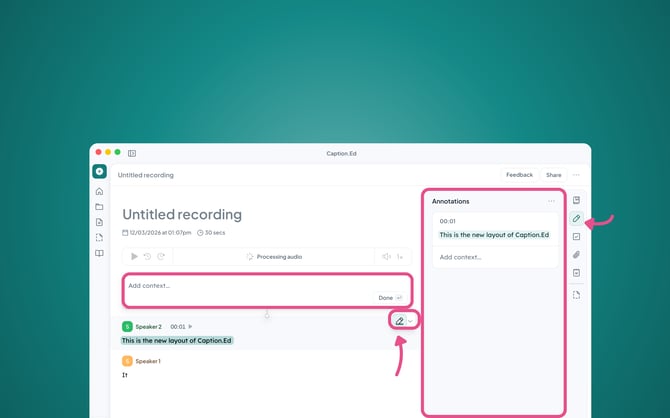
Add a Note = Annotations and Scratch Pad
You now have more flexibility when adding notes. You can attach a note directly to a highlighted annotation, or you can use the Scratch Pad to quickly write down any random thoughts or reminders during your session.
Adding Photo Notes or PDF Slides = Now all attachments
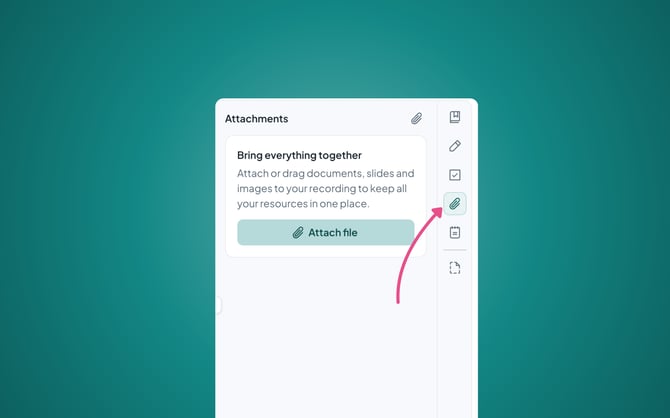
You are no longer limited to just photo notes or PDF slides. You can now include Word documents, PDFs, screenshots, and more, making it easier to capture and organise different types of content.
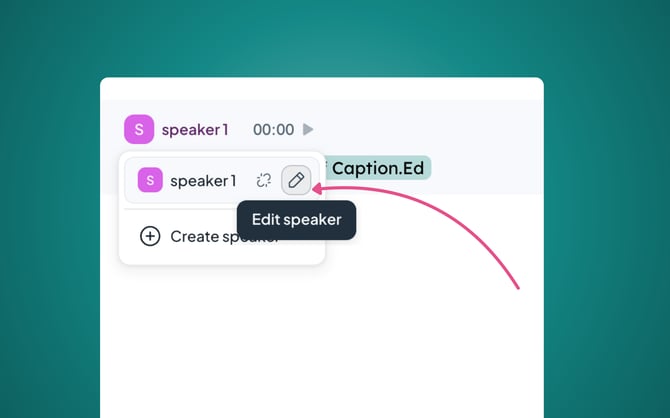
Edit Speaker Names = Now live + Live transcription editing
Previously, editing speaker names was only available in playback mode. Now, you can edit speaker names live, making it easier to keep track of who is speaking during a session. This is also the same for your transcription. Notice a word that you want to change? You can now do this instantly!