
To install Medincle on macOS Sonoma and later, this document will guide you through the steps to enable the necessary security settings.
In particular, it is necessary to enable the Installer app on Mac to grant Full Disk Access for Medincle to successfully integrate with your applications, such as Microsoft Word and iWork Pages. This will only take a minute!
Please Note: Please enable Full Disk Access for the installer before installing Medincle.
- Click on your System Settings app (gear icon), and then on Privacy & Security. Then click on Full Disk Access.
-png.png?width=670&height=419&name=Medincle%20template%20(9)-png.png)
- If the Installer option is present in Full Disk Access, ensure it's toggled on. Once you've confirmed this, you can skip the further steps below and continue to the complete section.
- If you don't see the Installer option in Full Disk Access, click the "+" icon. You will then be prompted to enter your Mac login credentials. Enter these as instructed.
-png.png?width=670&height=419&name=Medincle%20template%20(10)-png.png)
-
We want to select the Installer app: to do this, first go to your System folder, which you can find under Macintosh HD.
-
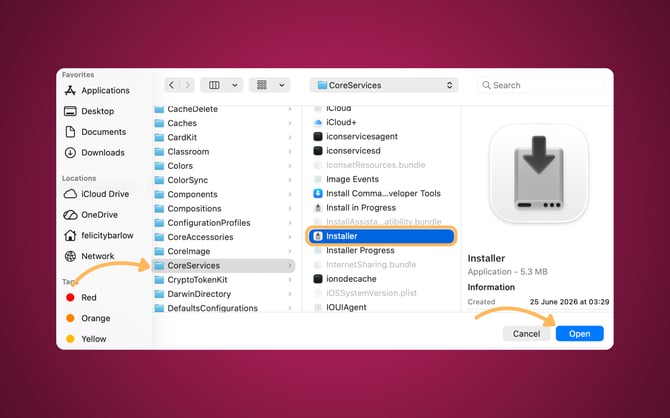
Within the System folder, click on the Library folder, and then the CoreServices folder.
- Within the CoreServices folder, find and click on Installer and then Open.
.png?width=670&height=419&name=Medincle%20template%20(12).png)
- You're now done setting the security settings for Medincle. You will see the Installer setting for Full Desk Access toggled on.
- You can now return to the Medincle installer to complete the installation process. Please note that the Medincle installer may need to restart for this to finish.