
Overview of the admin dashboard:
When signing into the admin dashboard, your home screen will look like this:
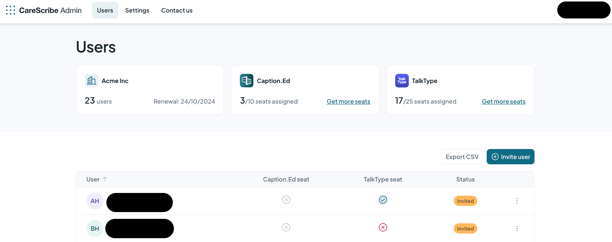
Here, you’re presented with an overview of your users (and if they have a seat assigned to them) the number of your assigned Caption.Ed and TalkType seats, and your users' activity status.
You can invite as many users as you would like to your admin dashboard, but only those with a seat will be able to use Caption.Ed and TalkType.
Acquiring more seats:
If you are interested in adding or purchasing new seats for either Caption.Ed or TalkType, clicking the ‘get more seats’ button will prompt you to message the team, who will contact you to discuss this further.
Inviting new users:
To invite more users to your dashboard, select the ‘invite user’ button, where you will be prompted to enter the user's first name, surname and email address.
You will also be asked to assign them either a Caption.Ed or TalkType seat.
Users must have an email address belonging to your organisation in order for them to be added to your dashboard.
-4.png?width=468&height=350&name=image%20(1)-4.png)
Once a user has been invited, the status of ‘invited’ will display alongside their user. Once they have accepted their invitation and logged into Caption.Ed for the first time, their status will show as active.
Editing and deleting users:
Using the three small dots toggle next to each user, you will be able to:
● Edit the user's display name and email address
● Assign and re-assign seats
● Resend the user a welcome email
● Delete the user Other