
Caption.Ed
Once your subscription has expired, you can make changes to your account within Caption.Ed. You will find a red banner within the Caption.Ed app prompting you to update your licensing status.
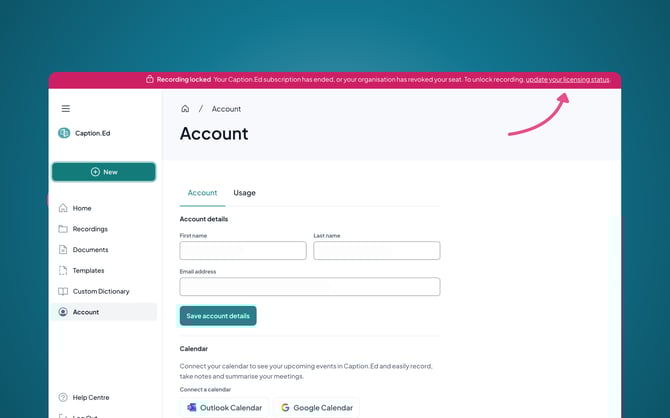
This will take you to another window, which will include a green “Manage your subscription” button, you will need to click through here:
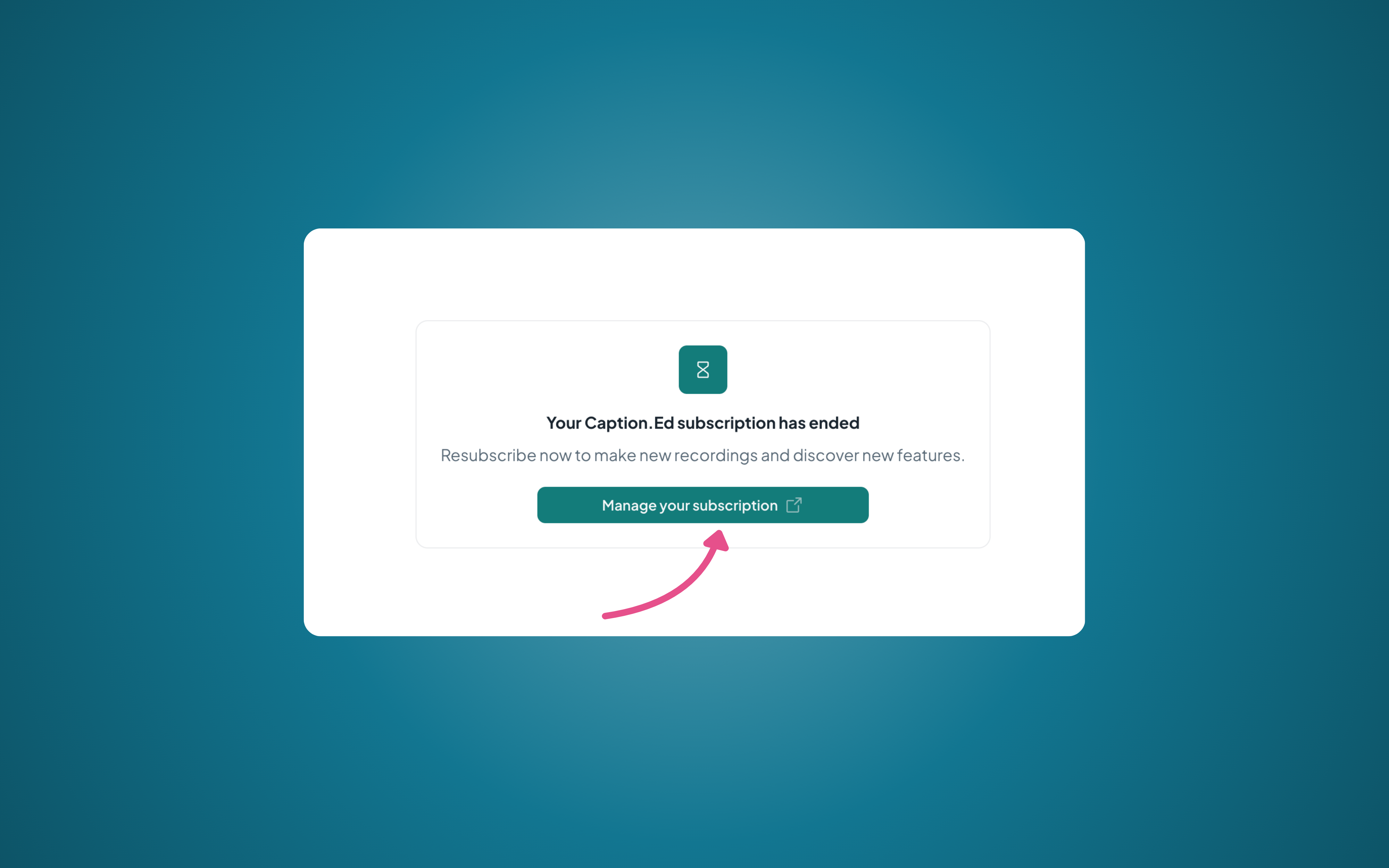
Here you’ll be taken to a checkout page, including your billing address, payment details and order summary, you’ll be able to update your payment details here.

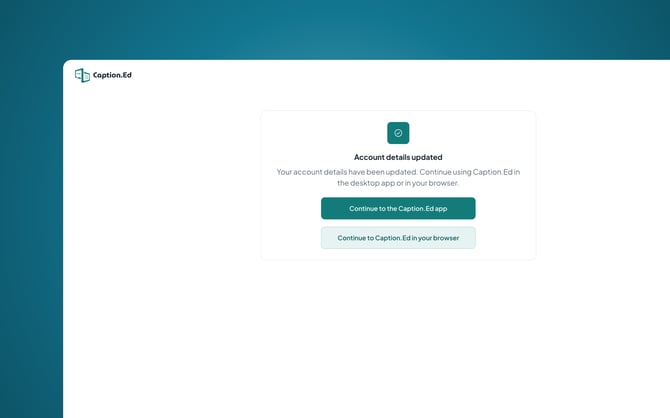
That is it! You’ll receive confirmation that your account details have been updated, and you’ll be able to continue through to Caption.Ed in the browser or desktop app.
My license hasn’t expired yet, how do I change my payment details?
If you’d like to update your payment details for your Caption.Ed subscription, but your license is still active, this can be done via the links included in the emails we’ve sent you about your license. Look for emails with the following subject lines:
- "Welcome to Caption.Ed!"
- "Your Caption.Ed trial ends in 3 days"
- "Your Caption.Ed trial has ended"
- "Your Caption.Ed subscription is active"
- "Your Caption.Ed renewal is coming up"
You can search for these subject lines in your inbox to quickly locate the correct email.
Alternatively, you can contact our Customer Support team, who will be happy to help you update your payment details.
TalkType
To update your subscription payment details for your TalkType license, log into TalkType, and then click on your initials in the top left-hand corner. This will open a drop-down, you will need to click “Account”
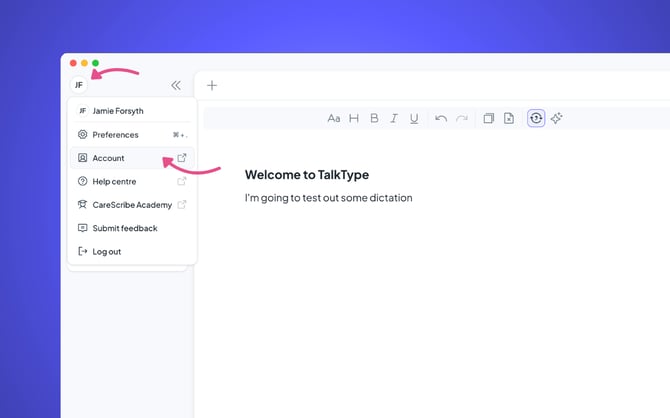
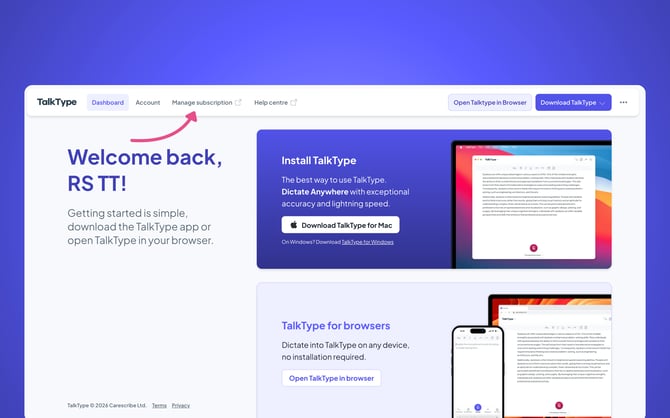
This will take you into your TalkType dashboard, here click on “Manage subscription”
This will open another window, here you’ll find your license in a white box, to cancel your subscription, click here.
This will take you through to a page which contains a “Cancel Subscription” button.

Through here you will see the date of your cancellation, a box to fill in your reason for cancellation. Once you have filled this in you can go ahead and click “Confirm Cancellation”.