
Activating your license:
You would have been issued an account from either the Access to Work (AtW) scheme or the Disabled Students' Allowance (DSA), and now you are ready to get started.
You will have received an email from medincle-licensing@carescribe.io asking you to activate your account. This might have ended up in your junk/spam folder, so make sure to also check here.
Then you need to click on the "Activate Account" button.
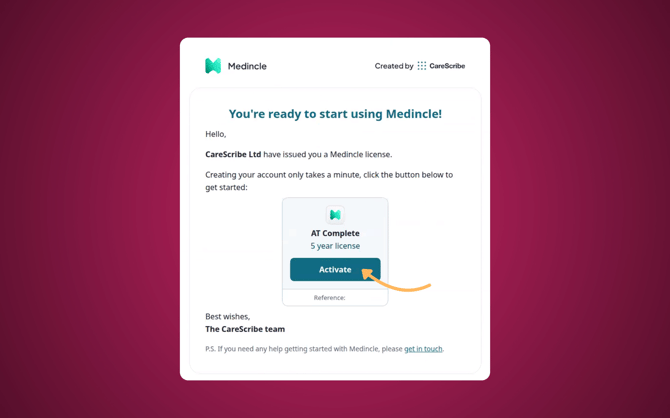
This will then open up a new tab, where you will need to fill out your name, email address and password. You will also need to agree to CareScribe’s terms and conditions.
Once you have done this, click on the "Activate licence” button.
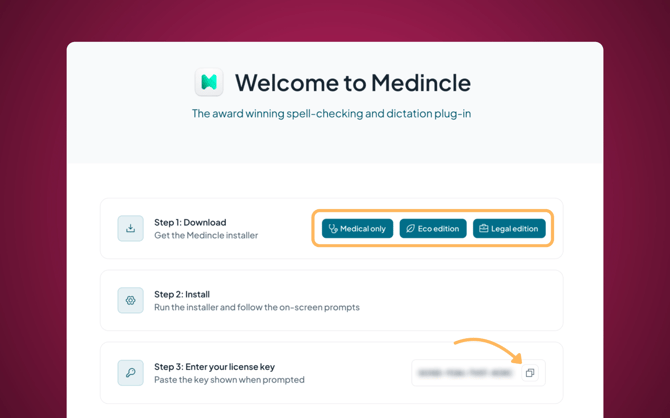
Now that your license has been activated, you will be taken to your Medincle dashboard. Here you’ll find the next steps for installation.
Installing Medincle:
Step 1: Download the Medincle installer
Depending on your license, you will need to select the corresponding installer:
- Medical only
- Eco edition
- Legal edition
Please note: you will need to have downloaded the correct installer in order for your license key to work. You can check which installer you need by referring to your license type within your activation email.
Step 2: Install
Run the installer and follow the on-screen prompts.
Step 3: Enter your license key
Copy your license key from the Medincle dashboard and paste it into your installer when prompted.
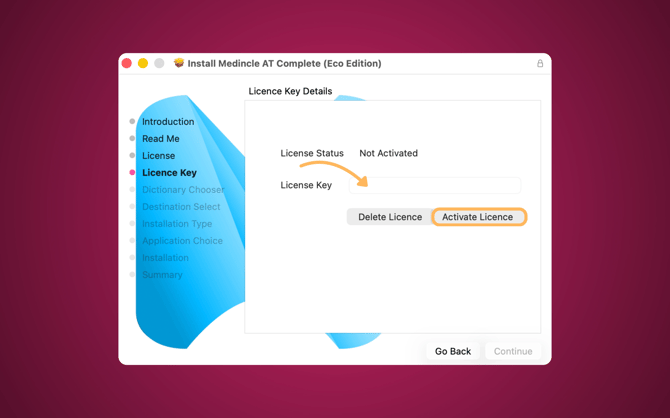
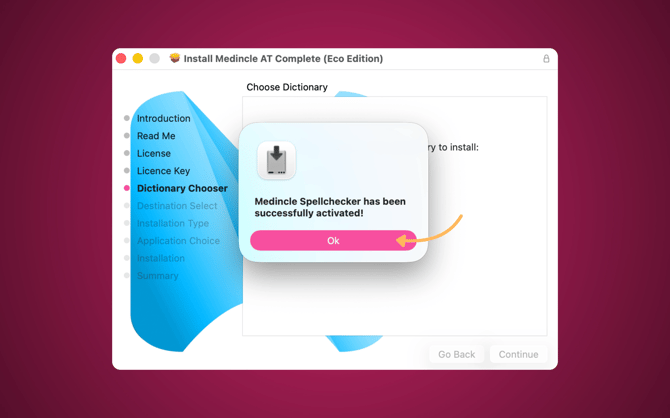
Important: Before you install Medincle, it is important that you have all assistive technology except TalkType downloaded onto your laptop/computer before installing Medincle.
If you have access to TalkType, it is important that you install this after Medincle has been installed on your device.
If you have an old Medincle license key:
If you have an older Medincle license key, you may find that this doesn’t work when copied into the Medincle installer. This may be because your key is outdated and no longer matches the installer.
If your key doesn’t work, please get in touch with our support team via help@medincle.com. Please be sure to reach out using your University or Organisation email address (the email address your license was issued to) and your license key.
Our support team will be happy to help!
Medincle Mobile
We also offer Medincle Mobile, a tool which accompanies our Medincle AT Complete license.
You can find links to download Medincle Mobile below: