
If you're experiencing difficulties or unusual behaviour while using Caption.Ed, providing error logs to our support team can help diagnose and resolve issues, leading to a smoother and more efficient user experience.
Error logs are valuable tools; this guide will walk you through the steps to retrieve them on both Windows and macOS operating systems. By following these simple instructions, you can locate and share essential error log files, enabling us to address any concerns you may have quickly.
Windows
Type "Run" into the Windows search bar.
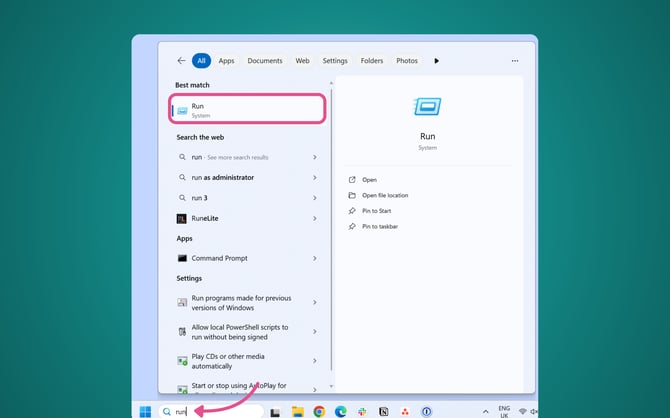
Select the "Run" command at the top of the search results.
In the "Run" window, enter the following path:
%USERPROFILE%\AppData\Roaming\Caption.Ed\logs
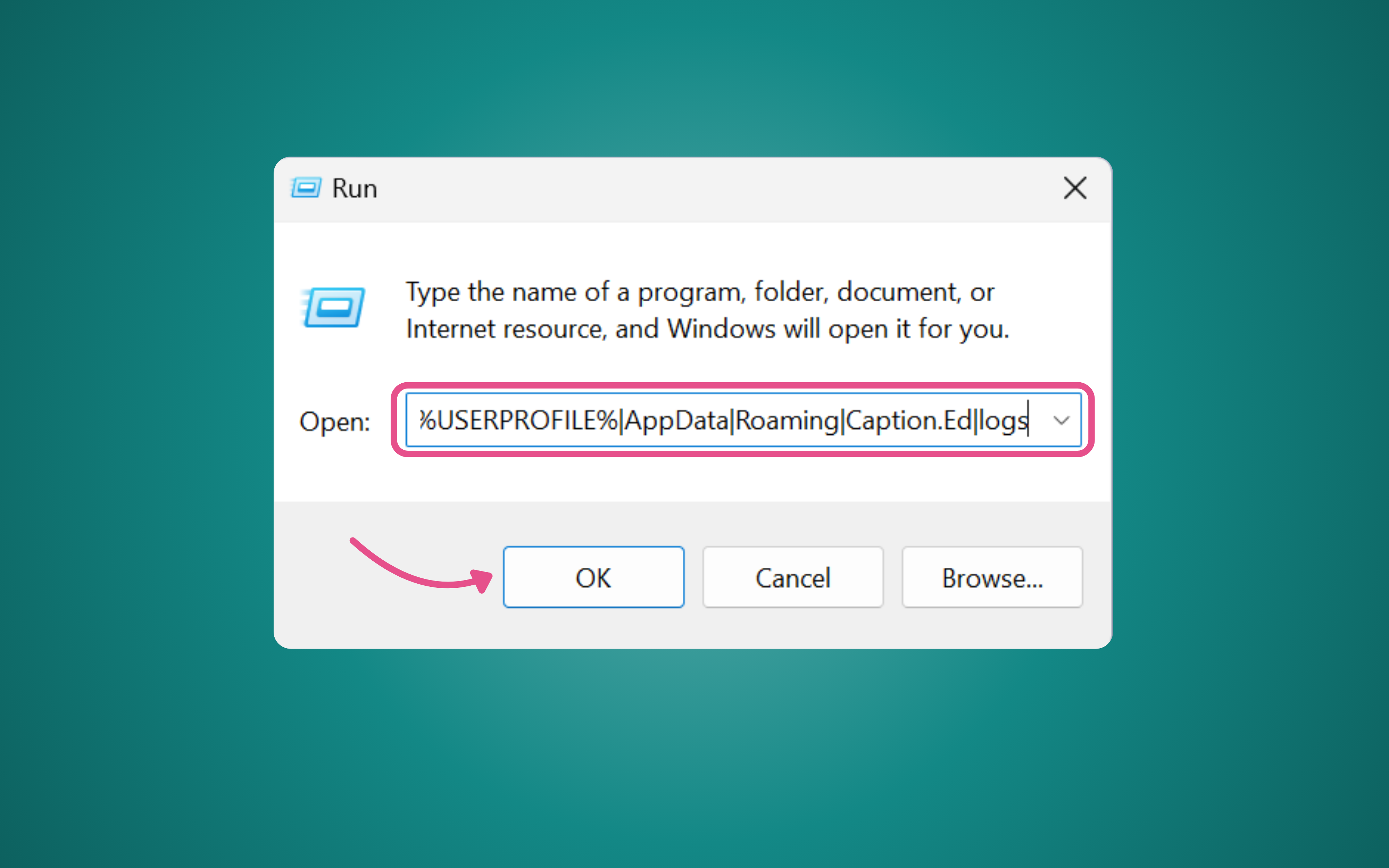
Look for the main file in this location.
Please send us the main file for further analysis.
If you encounter any difficulties or have additional questions, feel free to contact our support team for assistance. We're here to help!
MacOS
Click on the left-most icon in the Dock to open Finder.
In the menu bar at the top, click on Go → Go to Folder
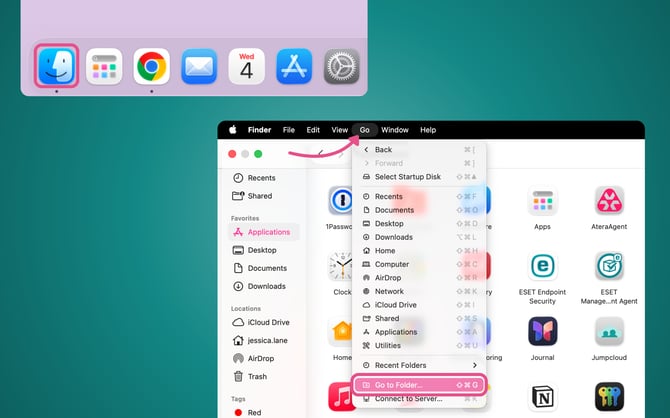
Copy and paste the following path into the pop-up window:
~/Library/Logs/Caption.Ed
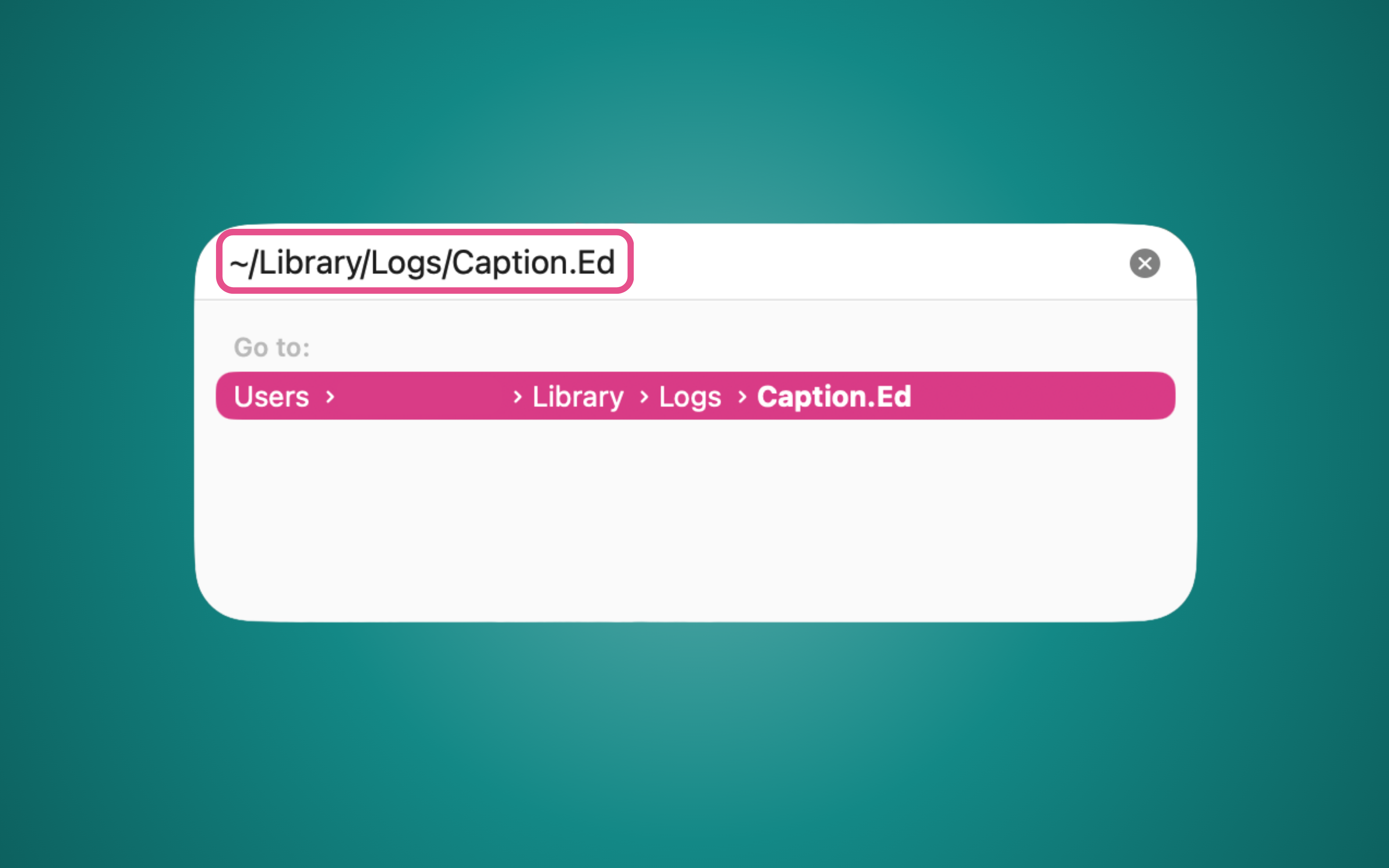
Look for the main file in this location and please send this file over to us for further analysis.
If you encounter any difficulties or have additional questions, feel free to contact our support team for assistance. We're here to help!