
Overlaying your Caption.Ed app is a great way to keep your workspace organised and work seamlessly across multiple applications without missing a single caption. This guide will walk you through, step by step, how to set up and use the overlay view.
- Download the Caption.Ed App
- Open the Caption.Ed App
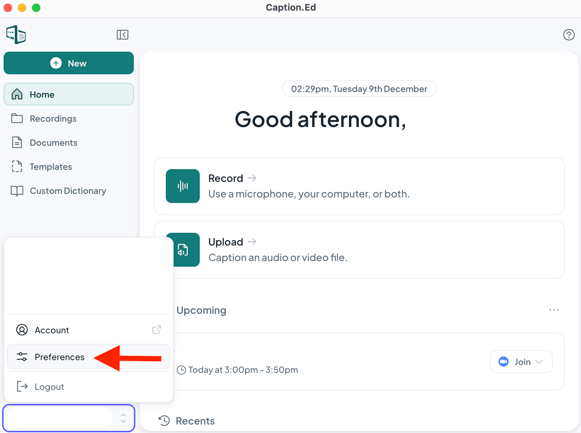
- Click on your name in the bottom left-hand corner, and then the "preferences" button
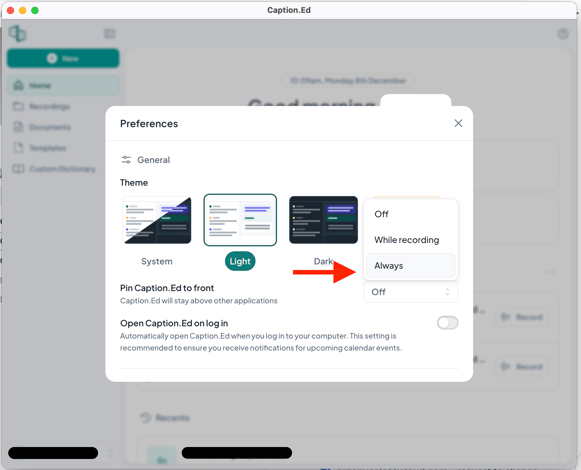
- Once in preferences, select the drop-down for "Pin Caption.Ed to Front" and select what mode suits you best, either "While Recording" or "Always".
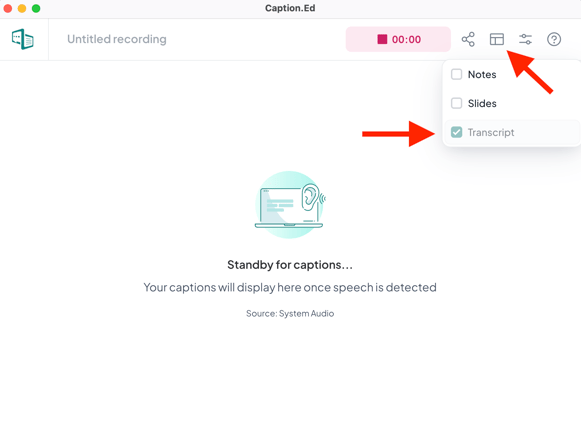
- Start recording a new session. When recording, change your workspace to only show transcriptions
- With the Caption.Ed minimised, you can click on the edges of the application to resize and shape it to your preference.
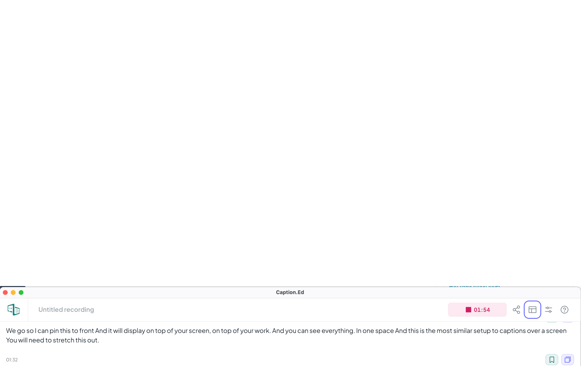
In the example above, the window has been resized to a rectangular window and placed at the bottom of the screen, leaving the blank space above free for other applications and multitasking.