
Sharing your broadcast
There are a couple of ways to share your broadcast. Participants can join using either:
- A short URL
- A QR code
You can view the short URL within the list of your existing Caption.Ed Spaces, you can click these directly to join the Space.
QR codes can be found when you “view” a Space, you can view by clicking the eye icon.
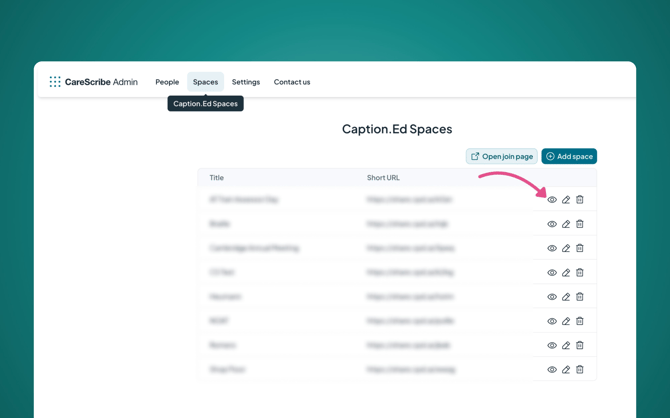
Here you can open the join page for the specific Space you wish to share via the QR code or URL. You can display this page on a screen for participants to scan, share the URL and QR code in advance, and save the QR code for printing on signposts or leaflets.
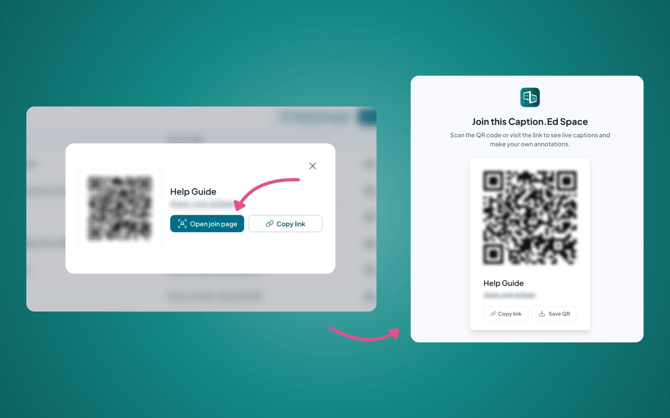
You can also share all of your Caption.Ed Spaces via one short URL and QR code. To do so, click the “Open join page” at the top of your list of Caption.Ed Spaces.
Starting a broadcast
To start a broadcast, you will first need to start a Caption.Ed recording, please see our guides below on how to set up different types of sessions within Caption.Ed:
- How to record a microphone session
- How to record using system audio
- How to record with Caption.Ed Scribe
Once recording, you can click “Broadcast” in the top right of your screen. This opens a list of available Spaces to broadcast to; select the one you’d like, and it will start the broadcast and provide your share options.
You can check if you’re broadcasting within the Caption.Ed recording view, the broadcast button will be green and display the Space you are currently broadcasting to. You can also click this button to show your sharing options.