
You can now create transcript-only recordings! When your recording ends, the video and audio are instantly deleted—leaving you with a clean, text-only transcript. It’s perfect for those environments where audio or screen recording isn’t allowed, but you still want to capture every important moment of the meeting. A game-changer for staying compliant and staying informed!
- To get started, simply log in to Caption.Ed. In the bottom-left corner, you’ll see your initials—click on them, then select "Account".
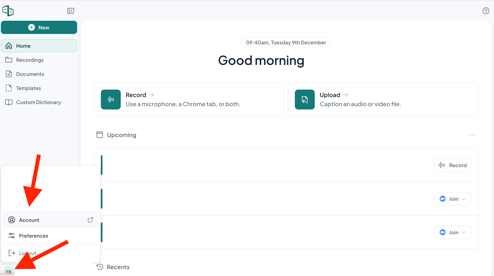
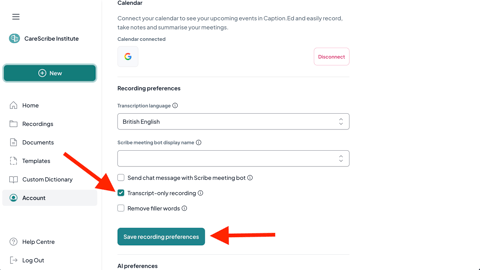
- Then once you ave clicked on the account button then you will be taken to the Accounts page and you need to scroll down until you see recording preferences. Then you need to tick the Transcript-only recording box and then click on the "Save recording preferences" button .
- That is it you are now ready to capture your transcript only recording. This is a great option for the more sensitive of meetings/when people do not feel comfortable being recorded.