
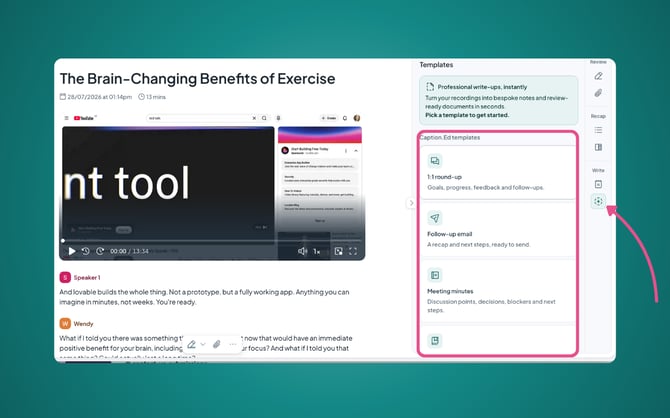
Caption.Ed can now fill out templates based on your recordings. We have few different templates to choose from:
- 1:1 round-up
- Follow-up email
- Meeting minutes
- Revision notes
How to generate a template
- Open the recording you want to work from.
- In the sidebar on the bottom right of Caption.Ed, find the Write section.
- Click the plus-in-a-circle icon to open the Templates column.
- Choose the template you want Caption.Ed will generate it automatically.
The generated template stays connected to the recording
Tip: If you highlight sections that are important, then Caption.Ed will take this into account when filling out your template.
Copying, deleting, and regenerating
Click the three dots in the top right-hand corner of a template to:
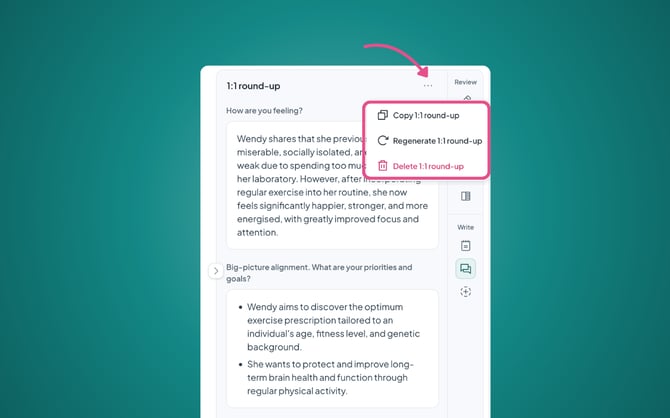
- Copy it, so you can paste the content anywhere outside Caption.Ed
- Delete it
- Regenerate it
Note: Templates are available on every Caption.Ed plan except for Caption.Ed, if you are looking to upgrade your account, please get in touch with sales@carescribe.io