
Caption.Ed offers a few simple ways to set up meetings, helping you get the most out of live transcription and note-taking. Below, we’ll show you how to capture an online session, where you need to capture the audio from your microphone and your device.
First, you need to update or download the new Caption.Ed app, you can do this by going here
Once this has been installed, you then need to log into your Caption.Ed account.
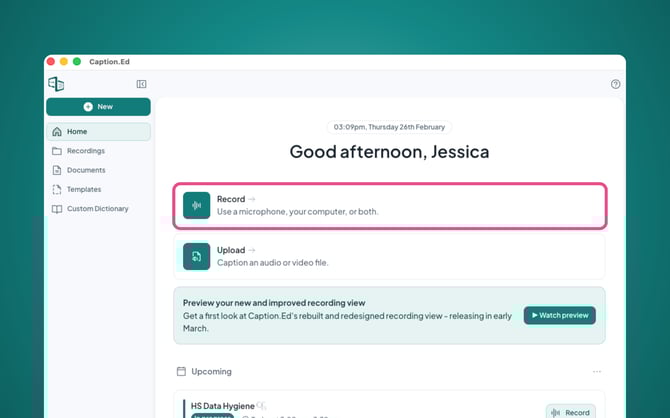
Then, you need to click on the "Record" button in the middle left corner of your home page.
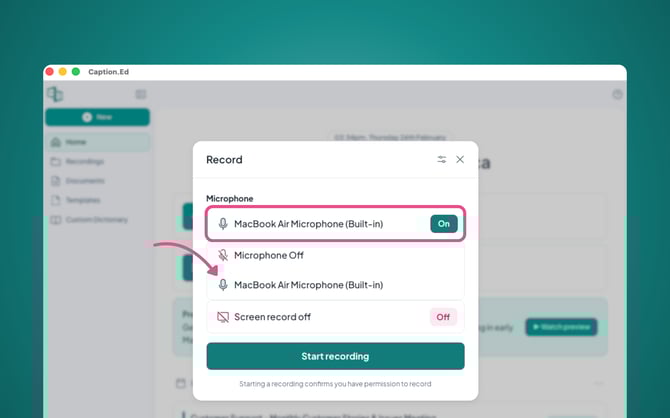
Next, you will need to ensure that your microphone is enabled, you can click on your microphone to access alternative microphones for Caption.Ed to use.
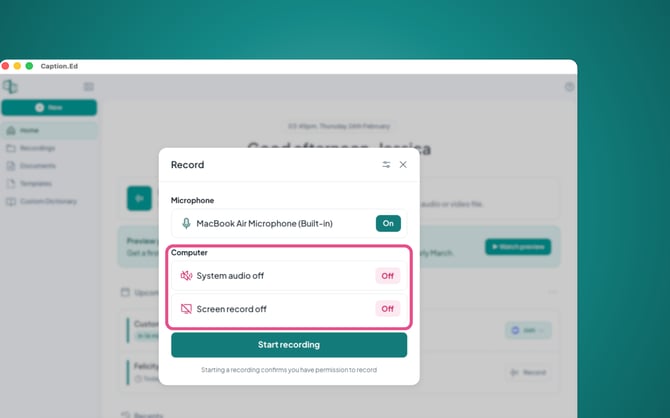
To be able to capture the person/people online you will need to enable your system audio.
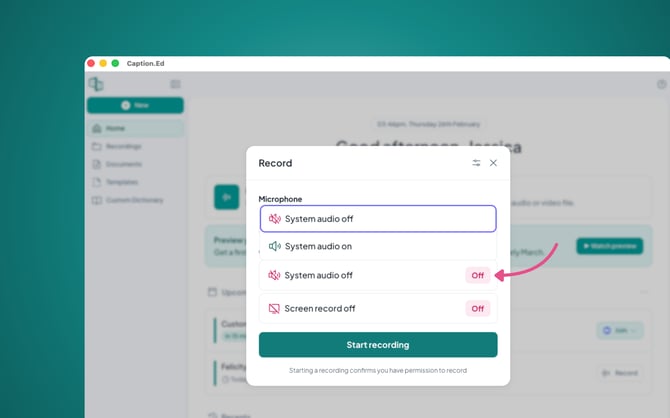
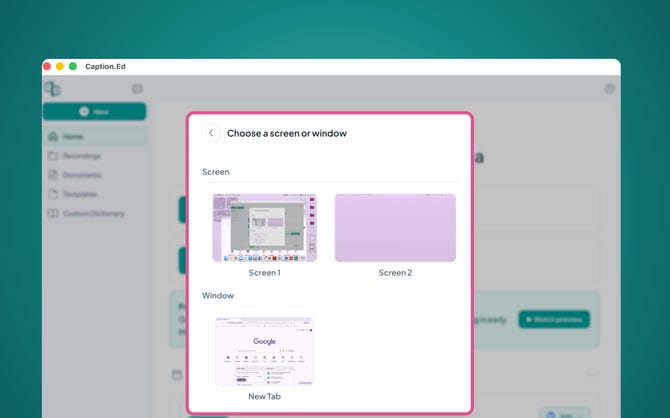
You can also record a screen or window of your choosing by clicking the “screen record off” option.
Once you are happy with your settings, all you need to do is click on the "start recording" button, and you’re ready to go!