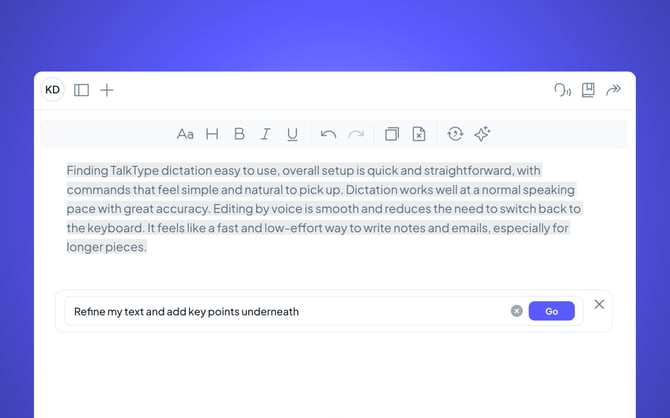
Our new AI integration helps structure your text, proofread it for grammar and clarity, and polish it to sound more professional. Follow this guide to see how to do this:
Note:
AI-generated content may contain inaccuracies.
Where to find AI within TalkType
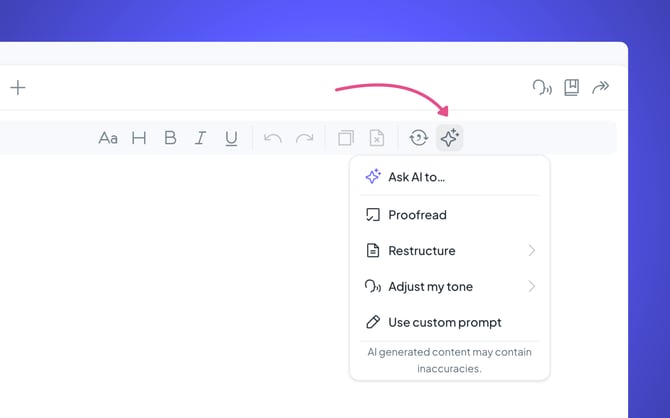
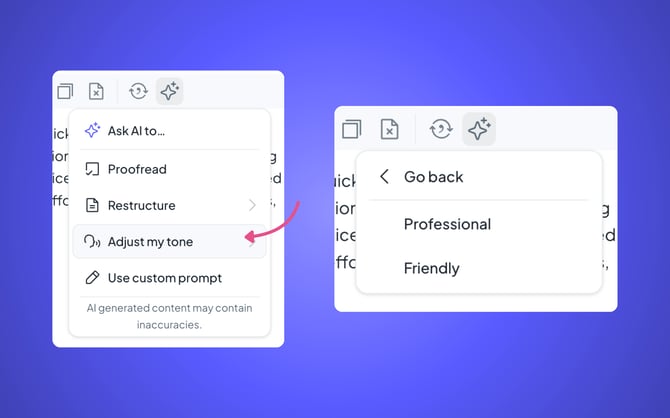
- First, in the top right hand corner you should see a "sparkly star icon", click on this icon and a drop down menu should appear.
- Then you can choose what you want AI to do whether that be Proofread your text, add structure, make sound more professional or even use a Custom Prompt.
- Just make sure to click on the replace button once you are happy with the alternative.
What does "Proofread" do?
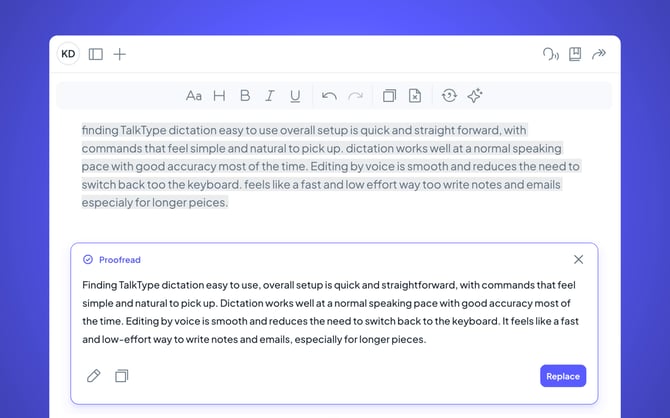
Proofread will review your text and try to spot any mistakes, whether that is with spelling or grammar. Here is an example below:
What does "Add structure" do?
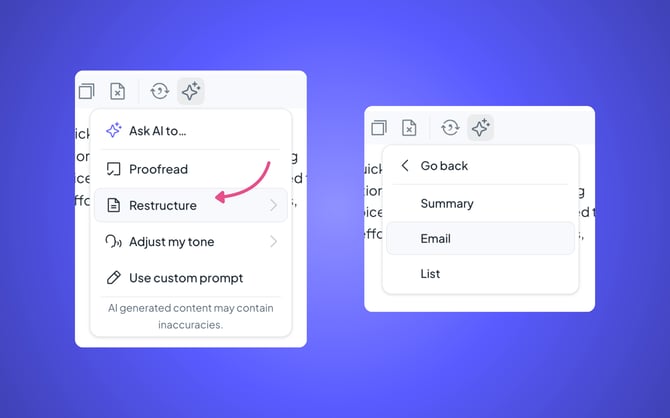
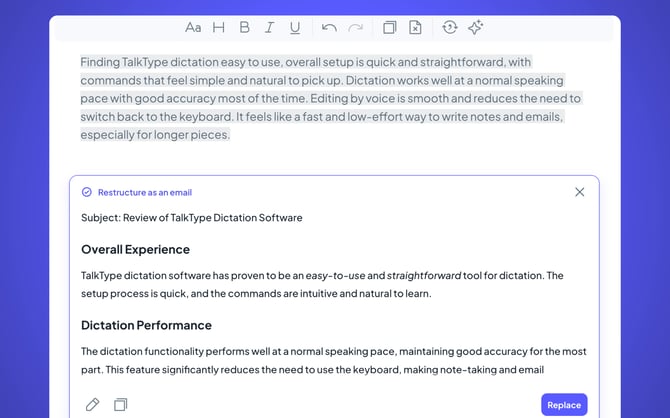
Adding structure will help break up your paragraphs into more manageable sections. You can either make it into an email, a summary or even a list.
What does "Make more professional" do?
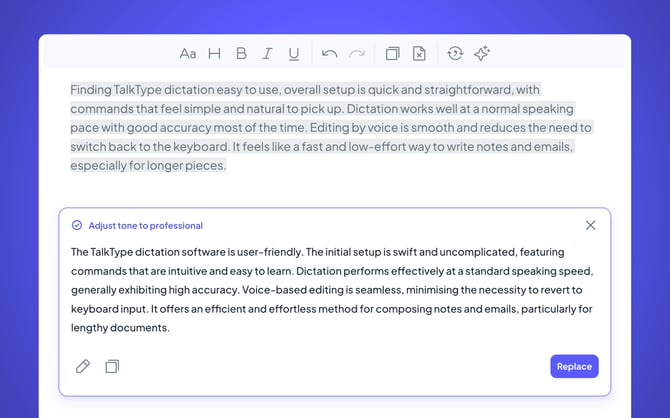
Make more professional will help to make your text more concise and formal. Here is an example below:
What does "Use Custom Prompt" do?
This allows you to ask TalkType anything, from tweaking parts of a document, rewriting sections, translating content, or polishing the whole thing to generating brand-new content from scratch.