
Caption.Ed Scribe is your captioning companion for online meetings. It works by joining your meeting and live-captioning what’s being said, acting as a silent participant in the background. As the meeting runs, your Scribe creates an instant transcription directly in your Caption.Ed account, ready for you to start writing notes right away.
One of Scribe’s standout features is automatic speaker identification. Because Scribe joins the meeting, it knows who said what, so manually adding speaker labels is a thing of the past. Each line of text is automatically attributed to the correct participant, saving you time and keeping your notes clear and accurate.
There are a couple different ways to invite Caption.Ed Scribe to your online meetings, we we walk you through these in this short guide.
Please Note: Caption.Ed Scribe is compatible with Zoom, Microsoft Teams or Google Meet.
Join via your Calendar
First, open the Caption.Ed desktop app or browser.
In your calendar, you will find the button to either join or record your meetings.
For the “Join” button to appear, you will need to have an online meeting link within your event information.
Next, click the “Join and add meeting bot” within the join drop-down. This will add both you and your Scribe into the meeting at the same time!
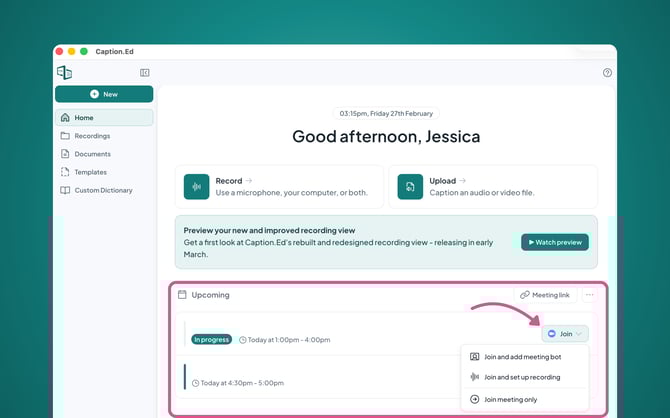
It can take a few minutes for the Caption.Ed Scribe bot to join your meeting, as this will also need to be approved by the meeting’s host.
Please Note: You will need to have connected your calendar to Caption.Ed to join meetings using this feature.
Join via Meeting Link
First, open the Caption.Ed desktop app or browser.
You will then need to click into the green “+ New” button in the top left corner of your screen.
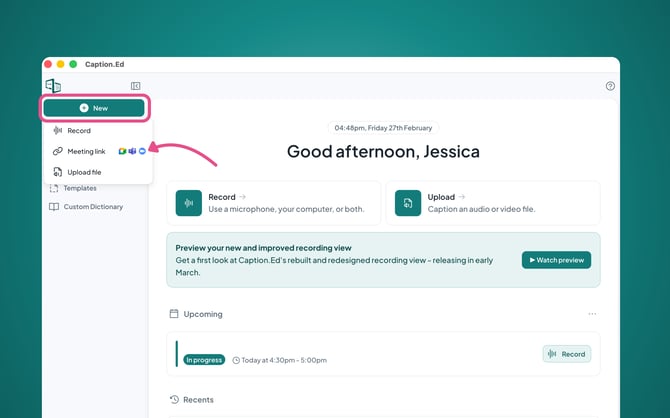
In the drop-down, you will find a “Meeting Link” option. Clicking into here will bring up a pop-up where you will be able to paste your online meeting link. Once pasted, click the “Add Caption.Ed to meeting” button.
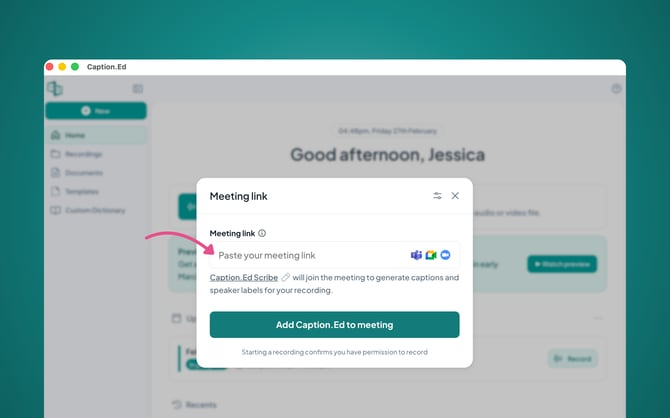
Your Caption.Ed Scribe will now be added to your online meeting!
Please Note: When using this method of adding your Caption.Ed Scribe, you will need to join the meeting yourself separately.